Connect your LinkedIn page to your POK credentials
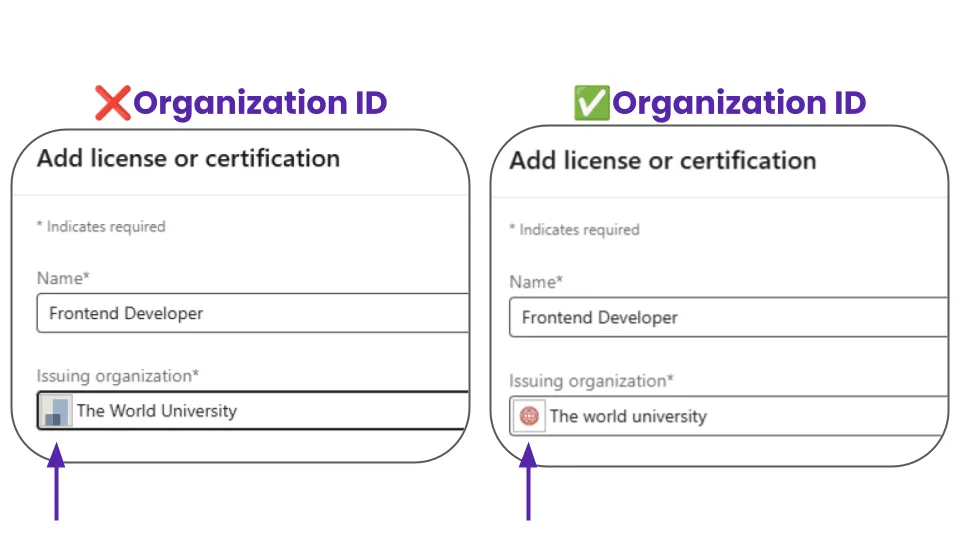
POK Proof of Knowledge lets recipients add their credentials as verified certifications on their LinkedIn profiles. To make those certifications display your logo and link to your company page, add your LinkedIn Organization ID in your POK account settings. Your Organization ID is the number at the end of your LinkedIn company page URL.
Why add your Organization ID?
When your Organization ID is linked to POK:
- Your logo appears in the Certifications section of recipients' LinkedIn profiles.
- Each credential is officially linked to your LinkedIn company page.
- Your brand gains exposure and credibility with every credential shared.
What does the Organization ID do?
The Organization ID tells LinkedIn which company page to display as the issuer of the credential.
Without this ID:
- Your organization's logo is not shown.
- The credential is not linked to your LinkedIn page.
How to find your LinkedIn Organization ID
-
Open your company page on LinkedIn as an admin.
-
Look at your browser's address bar and find the number at the end of the URL. For example:
https://www.linkedin.com/company/12345678/In this example, 12345678 is your Organization ID.
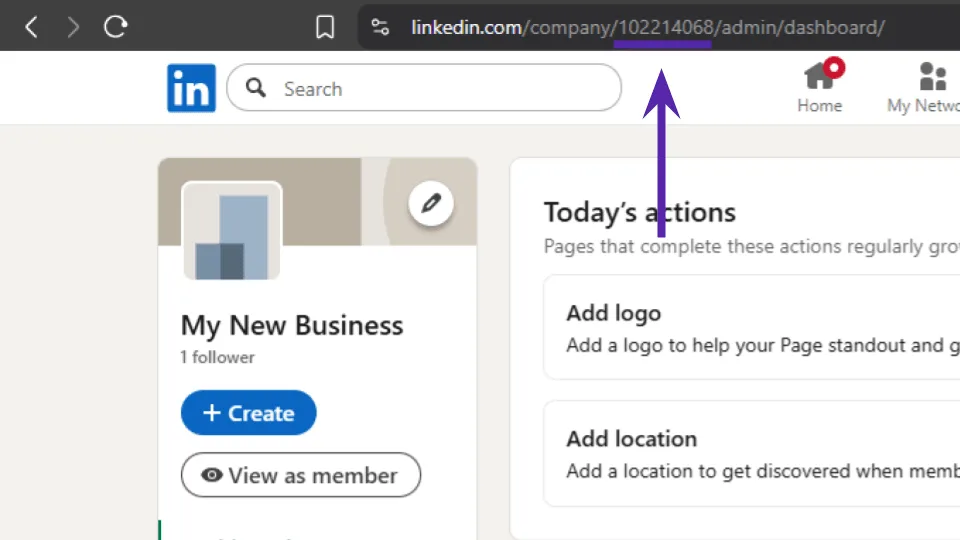
- Copy that number.
How to add the Organization ID in POK
- Log in to your POK account.
- Go to the Organization Settings section.
- Click + Add Organization ID.
- In the editable field that appears, paste your Organization ID.
- Click Confirm.
That's it. From now on, whenever a recipient adds their credential to LinkedIn, your company page automatically appears as the issuing organization.