Integrate POK with Sana
Integrating POK Proof of Knowledge with Sana lets you issue credentials automatically when a learner completes a course. You register the integration in your POK panel, connect POK to your Sana workspace, and choose which courses issue which credential. From then on, every time Sana reports a course completion, POK issues the configured credential to that learner, with no manual step.
The connection has two directions, and each uses its own credentials:
- POK reading from Sana: POK calls Sana's API to look up the learner who completed the course. This uses the API credentials you create in Sana's dashboard.
- Sana notifying POK: Sana sends each completion to POK. This uses connection credentials that POK provides to you.
The steps below cover both.
Start the integration from POK
- Go to the Integrations section in your POK panel.
- In the list of available platforms, select Sana.
- Give the integration an identifying name (for example, "Sana 2026").
- Enter the credentials from your Sana workspace:
- Sana tenant URL: your Sana address, for example
https://yourcompany.sana.ai. - Client ID and Client Secret: the OAuth2 API credentials created in Sana (see below).
- Sana tenant URL: your Sana address, for example
- Save the integration.
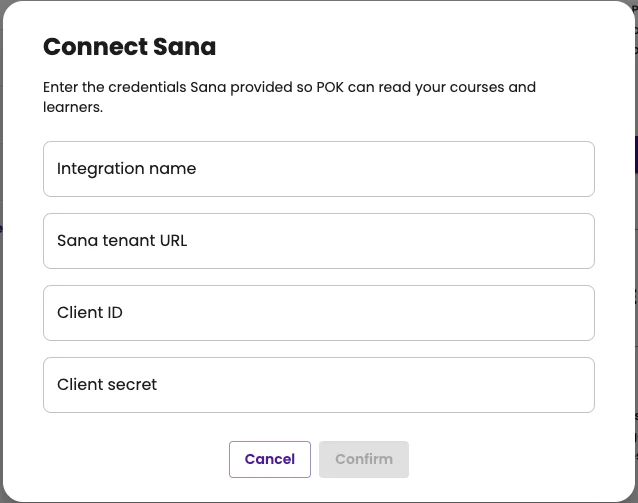
The Client ID and Client Secret come from the API client you create in Sana's admin settings. If you do not have them yet, create an API client in Sana first, then return to this form.
Request your connection credentials from POK
So Sana can notify POK of course completions, POK issues you a dedicated set of connection credentials. After you create the integration, POK shows you how to request them.
Email contact@pok.tech to request your Sana connection credentials. POK will send you:
- A Client ID and Client Secret (issued by POK, different from your Sana ones).
- The token URL and the statements URL Sana needs to reach POK.
Configure the integration in Sana
In Sana, set up the xAPI integration that sends completion statements to POK, using the values POK sent you:
- Open your Sana workspace settings and add an xAPI integration.
- Enter the statements URL provided by POK as the endpoint.
- Under authentication, choose OAuth2 client credentials and enter the token URL, Client ID, and Client Secret POK provided.
- Set the Actor type to
account. This is required: with any other actor type the completion arrives without the learner's identifier and POK cannot issue the credential. - Save the integration in Sana.
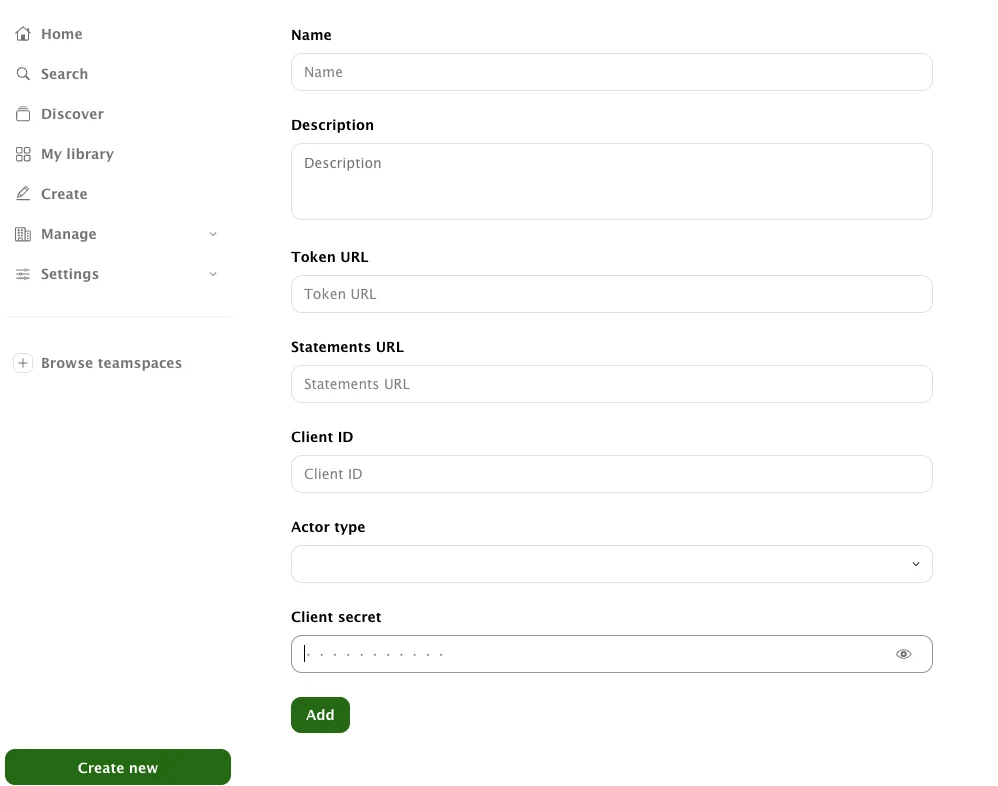
The Actor type must be account. It is the one setting on the Sana side that, if wrong, silently prevents credentials from being issued.
Choose which courses issue a credential
Back in POK, decide which of your Sana courses issue a credential and how each one looks.
- Open the Sana integration from the Integrations section.
- Search for the course you want to configure and select it.
- Complete the credential setup:
- Select the credential design.
- Link a custom page and a learning path (optional).
- Define whether the credential has an expiration date.
- Map the design's custom attributes to the learner data.
- Choose the credential type: basic or blockchain.
- Set the email language the learner will receive.
- Save the configuration.
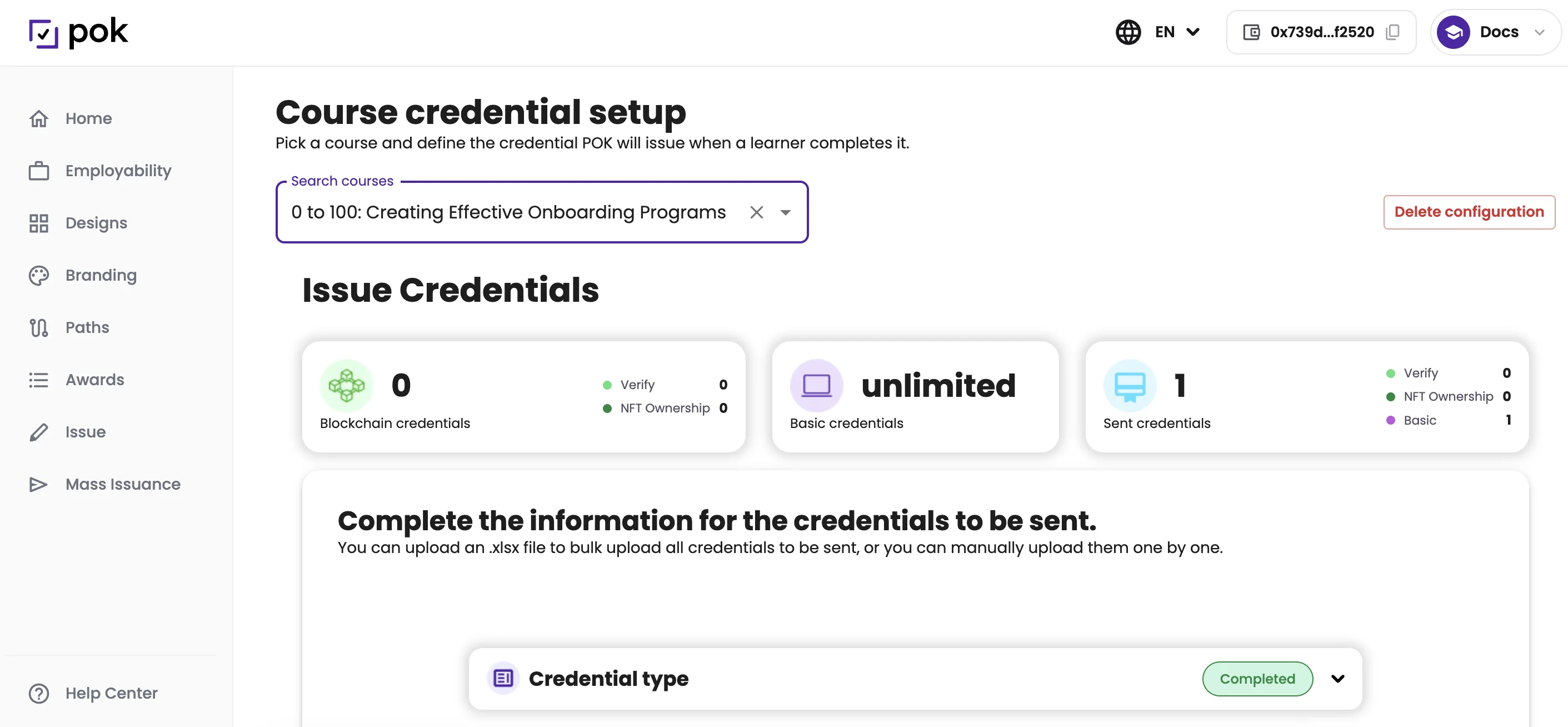
A green check marks each course that already has a credential configured. Only configured courses issue credentials; completions for any other course are ignored.
To stop issuing for a course, open it again and delete its configuration.
How issuance works
Once a course is configured and the Sana integration is connected, issuance is automatic:
- A learner completes the course in Sana.
- Sana reports the completion to POK.
- POK looks up the learner in Sana and issues the configured credential.
- The learner receives an email with the link to accept their credential.
No manual action is needed for each learner. If a completion arrives for a course you have not configured, POK simply ignores it.
If you have any questions, email us at contact@pok.tech
Learn more
To see how POK's integrations connect with your LMS and other systems, check out the LMS and CRM integrations feature page.